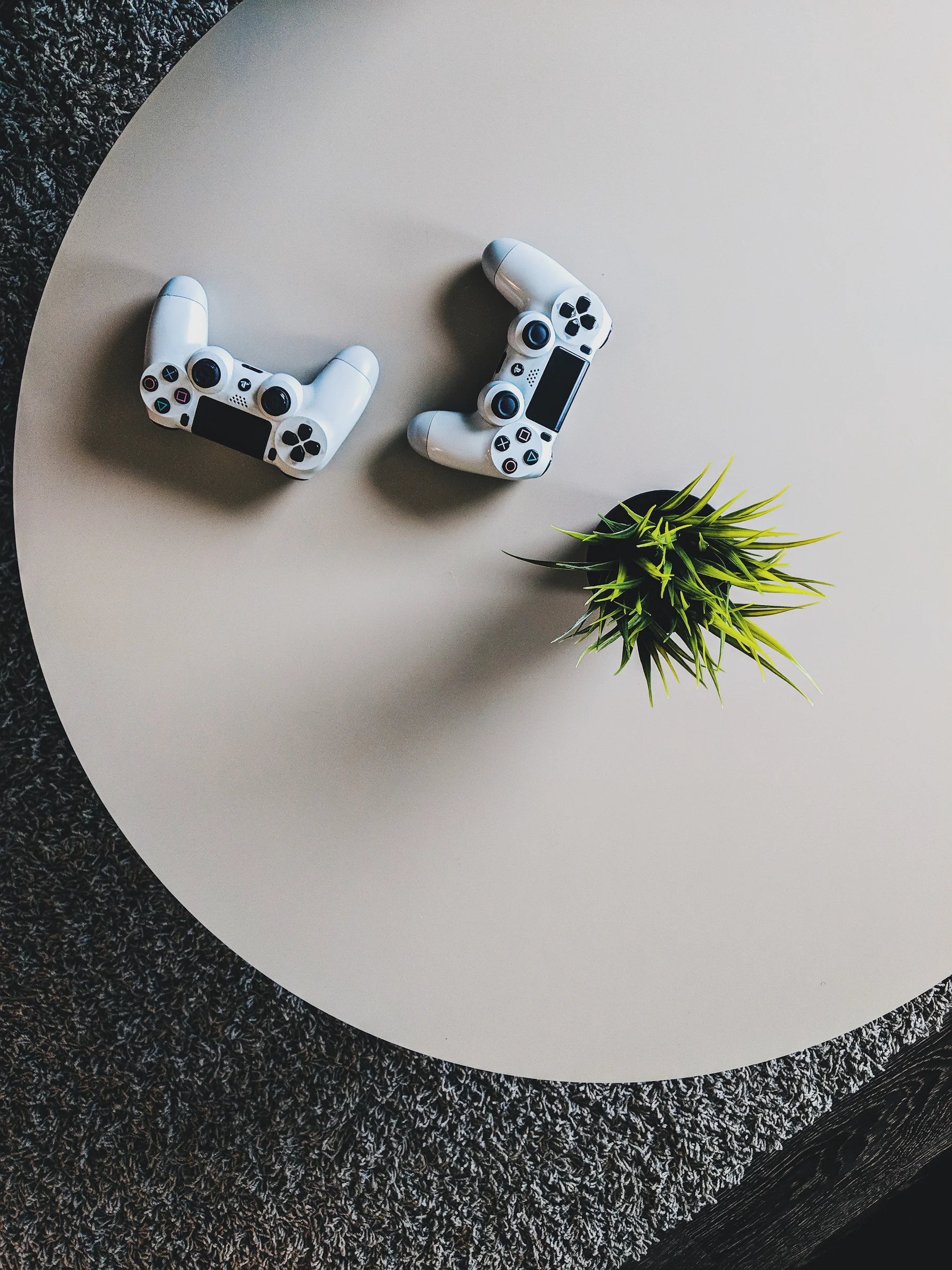
A new controller for the release of a big game? Here is how to connect it and keep it up to date, based on PlayStation's help page.
First pairing
The simplest way: connect the controller to the PS5 with the supplied USB cable, then press the PS button. The controller is paired.
Adding a controller wirelessly
- With a controller already connected, go to Settings › Accessories › General › Bluetooth Accessories.
- On the new controller, hold down the Create button and the PS button at the same time.
- When it appears on screen, select it.
Updating the controller software
The controller has its own software. Updates generally arrive along with the console's. To check:
- Go to Settings › Accessories › Controllers (General).
- Choose DualSense Wireless Controller Device Software.
- Follow the instructions if an update is offered.
Sony also offers an update from a computer, through a dedicated tool described on its website.
The controller won't connect?
- I've tried another USB cable, in good condition
- I've plugged the controller back into the console, then pressed the PS button
- I've followed the “Reset the controller” procedure from PlayStation support
- I've checked the controller with the PlayStation Repairs tool
How many controllers?
One controller per player is enough for the console. A second, charged controller, however, saves you waiting for a recharge to finish in the middle of an evening. It's the best “accessory” for a long session.
Beware of copies
Controllers sold at very low prices on unknown sites are often imitations. They may refuse updates or not support haptic feedback and adaptive triggers. Buy from a reputable retailer and keep your receipt: you'll need it for the warranty.
Did this guide help you?
Read next
DualSense Edge: Sony's Pro Controller
Back buttons, trigger stops, replaceable sticks, profiles: what the DualSense Edge really brings, and its limits.
PS5: Capturing Your Best Moments
Screenshots, recording, saving recent gameplay: everything the DualSense Create button allows, and the useful settings.
PS5: Getting Your Captures onto Your Phone
Automatic upload to the PlayStation app, duration and resolution limits, downloading to your phone: the step-by-step guide.
PS5: Streaming on Twitch or YouTube
Linking your account, going live from the Create button, managing camera, mic and chat: streaming from the PS5 without a PC or capture box.