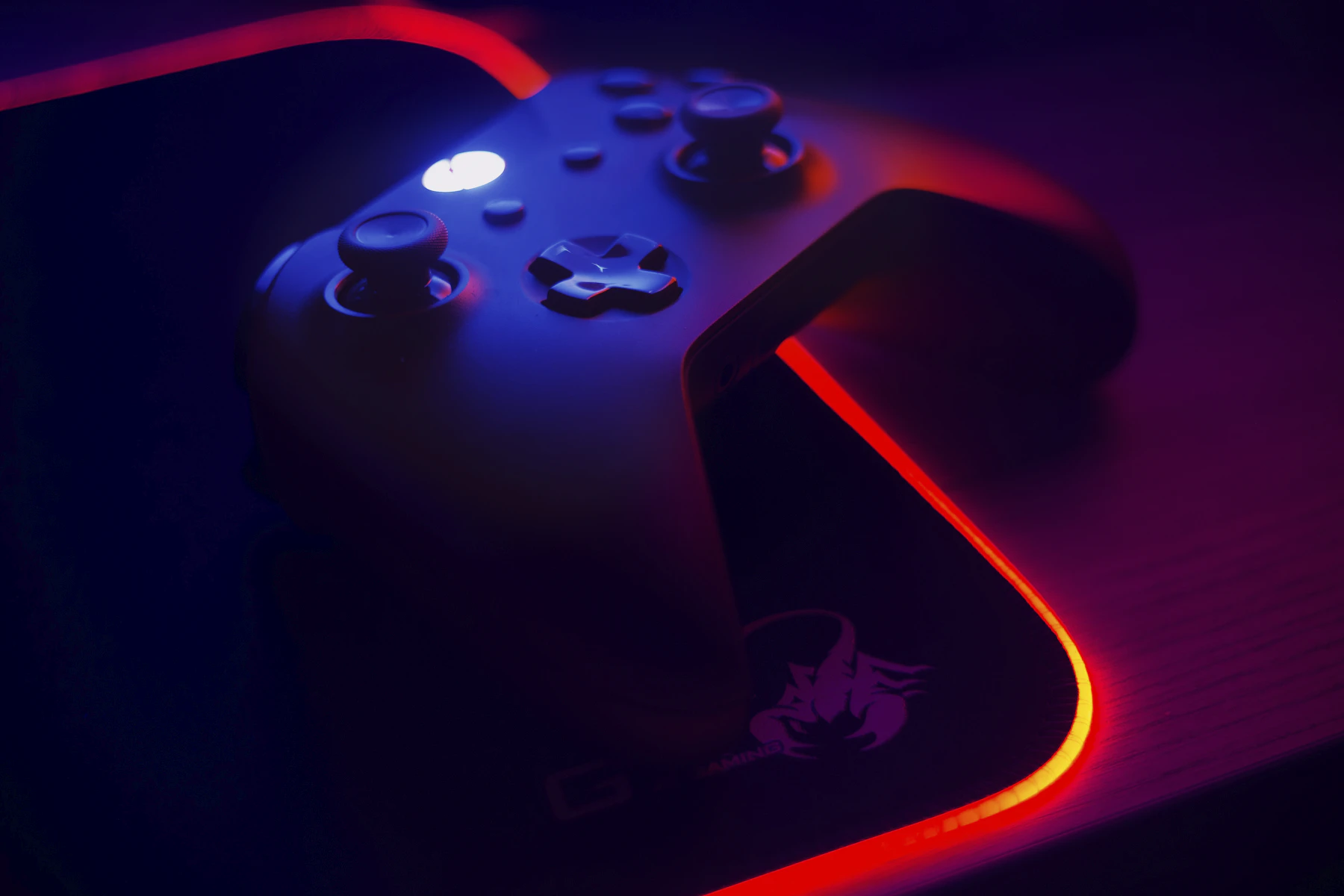
The Xbox controller has its own internal software, the firmware. Keeping it up to date improves its compatibility and sometimes adds features. Microsoft offers three methods.
Method 1: wirelessly
- Open the guide with the Xbox button.
- Go to Profile & system › Settings › Devices & connections › Controllers & headsets.
- Select the controller to update.
- Choose “...” to see the firmware version.
- If “Update” appears, select Firmware version and follow the steps.
The case of the first controllers
The very first Xbox wireless controller, recognizable by the small round 3.5 mm port under the controller, can only be updated over USB. All the others accept wireless updates.
Method 2: over USB
- Plug the USB cable into the console. On Series X, the port is at the front, under the Pair button. On Series S, it is at the front left, next to the Pair button.
- Plug the other end into the top of the controller.
- The instructions appear automatically. Leave the cable connected until the end.
Method 3: on a PC
The Xbox Accessories app, on Windows, can also update the controller. Careful: it doesn't detect a controller connected over Bluetooth. Use the USB-C cable or an Xbox wireless connection.
With a headset adapter
If you use a stereo headset adapter, plug it under the controller with a connected headset during the update: it will benefit too.
- Batteries or battery pack well charged
- USB cable within reach
- Firmware version checked
- Every controller in the household updated
Microsoft regularly publishes new updates. A check from time to time, for example before a big release, is enough.
Did this guide help you?
Read next
Xbox Elite Series 2 Controller: The Guide
What's in the box, the Core version, stick tension, profiles, battery life: what you need to know about Microsoft's pro controller.
Xbox: Capturing Clips and Screenshots
Share button, Xbox guide, clip length, automatic upload: every way to keep a record of your games on Xbox Series X|S.
Xbox: Sharing Your Captures Anywhere
Activity feed, messages, the Xbox mobile app, Game Bar on PC: how to send your Xbox clips and screenshots to your friends and networks.
Xbox: Livestreaming Your Games
Install the service's app, activate your account, go live, switch providers: livestreaming from an Xbox.