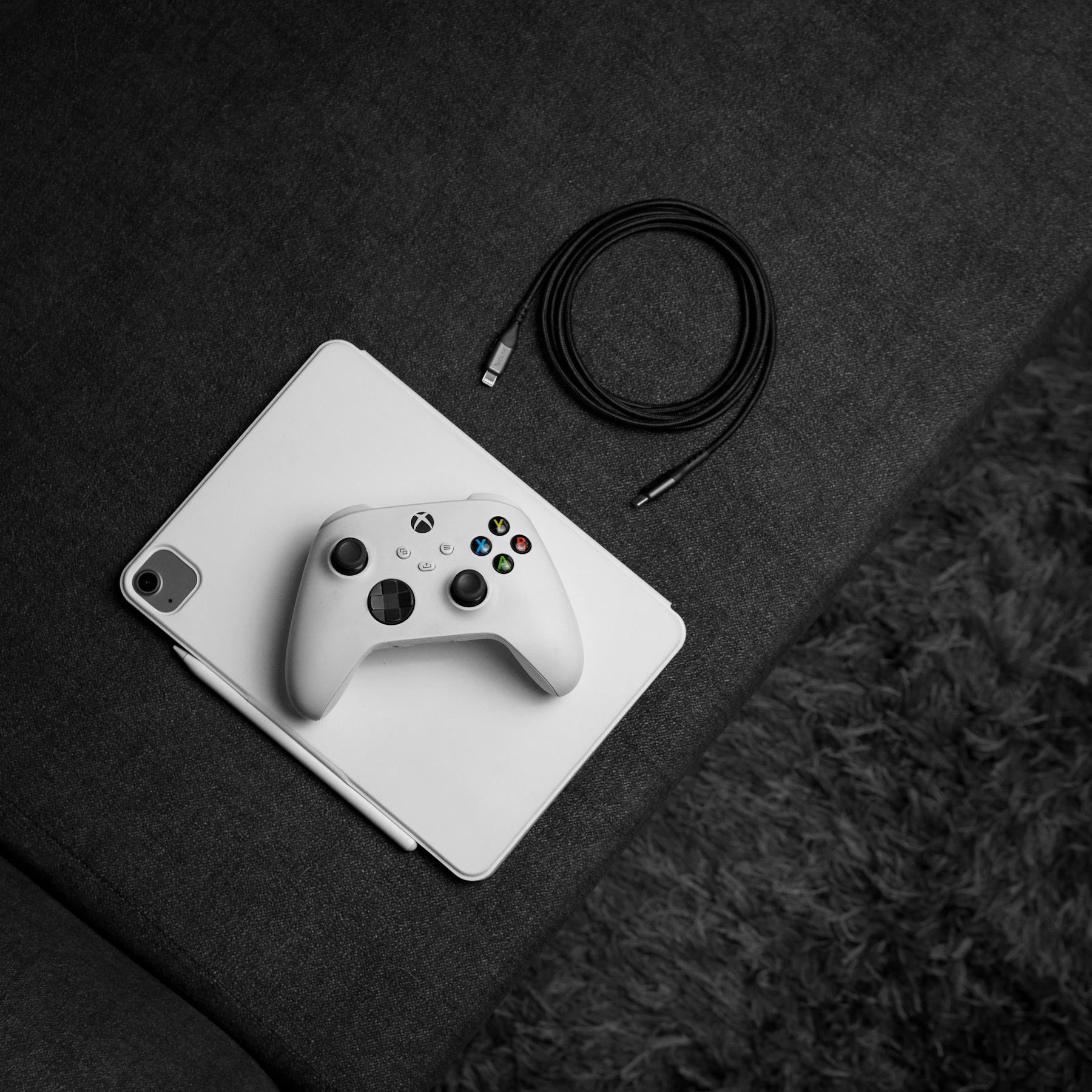
A dead DualSense in the middle of a game happens easily. A few good habits are enough to always have a controller ready, and a battery that lasts over time.
Charging while the console rests
Go to Settings › System › Power Saving › Features Available in Rest Mode. Set Supply Power to USB Ports to Always or 3 hours. On CFI-2000 models and newer, the Adaptive option is also available.
Adaptive charging needs the supplied USB Type-C cable, plugged into the console's USB Type-C port. It works with the DualSense, the DualSense Edge, the Access controller and the PS VR2 Sense controllers.
Reading the lights
- The light bar slowly pulses orange: the controller is charging.
- It turns off: charging is complete.
- On the console, the battery icon animates under “Accessories,” in the control center.
Charging somewhere other than the console
A computer or another USB device can charge the controller, with a cable that meets USB standards. Sony warns, however, that some chargers don't manage it.
Preserving the battery
The controller's user guide gives three tips:
- Charge in a room between 10 °C and 30 °C
- Do a full charge at least once a year if the controller sits in a drawer
- Accept that battery life gradually declines with age: that's normal
Our routine
Plug the controller into the console at the end of the evening, with rest mode set to 3 hours. The next day, it is full, and the console doesn't stay needlessly powered all night.
If you often play for long stretches, a second controller is the real solution: one charges while the other is in use. You can also play with the cable plugged in, in which case the controller recharges during the game.
Another option: a charging station, where you set down one or two controllers after playing. No more hunting for the cable, and your controllers stay ready to go.
Did this guide help you?
Read next
DualSense: Pairing and Updating
Adding a second controller wirelessly, updating its software, knowing what to do if it won't connect: the practical guide.
DualSense Edge: Sony's Pro Controller
Back buttons, trigger stops, replaceable sticks, profiles: what the DualSense Edge really brings, and its limits.
PS5: Capturing Your Best Moments
Screenshots, recording, saving recent gameplay: everything the DualSense Create button allows, and the useful settings.
PS5: Getting Your Captures onto Your Phone
Automatic upload to the PlayStation app, duration and resolution limits, downloading to your phone: the step-by-step guide.